




You copied a Browser(proxy=ProxySettings(...)) snippet from a tutorial, ran pip install browser-use, and got an ImportError before the agent opened a single page.
That's not your typo. browser-use 1.0 dropped the proxy option for local browsers, and nearly every guide on page one still shows the 0.13 code.
Here's how to set up custom proxies in browser-use anyway: on your own Chrome, with or without a proxy login, plus the 0.x fallback and the Cloud web version.
For the bigger picture, see the five problems AI agents hit in web scraping.
How do you set up custom proxies in browser-use?
To set up custom proxies in browser-use 1.0, launch Chrome yourself with --proxy-server and a debugging port, then hand the agent Browser(cdp_url="http://127.0.0.1:9222"). Proxy logins need a small local forwarder, because Chrome rejects credentials in that flag. On browser-use 0.13, Browser(proxy=ProxySettings(...)) still works.
The reason sits in the 1.0 source. Browser() with no arguments now creates a Browser Use Cloud browser, and the only proxy setting left is cloud_proxy_country_code.
Pass proxy= and you get an error pointing you to that Cloud option. The 1.0 migration guide lists the local proxy option as dropped for now.
cdp_url survived, and that's the door this guide uses.
| Setup | browser-use 1.x | browser-use 0.13.x |
|---|---|---|
Browser(proxy=ProxySettings(...)) |
Raises an error | Works, answers proxy logins |
Browser('chromium') with a proxy |
No proxy option | Not applicable |
Your own Chrome + cdp_url |
Works (Methods 1 and 2) | Works |
Browser Use Cloud customProxy |
Enterprise plan, enabled by sales (section below) | Same |
Prerequisites
- Python 3.11 or newer (browser-use 1.x requires it)
- browser-use:
pip install browser-usefor Methods 1 and 2, orpip install 'browser-use<1'for Method 3 - Google Chrome or Chromium on the same machine. Set
CHROME_PATHif it isn't at/usr/bin/google-chrome - A key for whichever chat model class you use. The examples use
ChatOpenAI;ChatOllamakeeps the model on your own hardware - An HTTP proxy: host, port, and either a whitelisted IP or a username and password. Residential or ISP IPs suit consumer sites (Roundproxies sells both, so test against your own targets)
Always pass llm= and browser= to Agent. In 1.0, leaving them out means Browser Use's hosted model and a Cloud browser, and your proxy never enters the picture.
Tested with Chrome 153 and Python 3.13 on Linux. The browser-use calls are checked against the 1.0.8 and 0.13.14 source.
Method 1: Launch Chrome with a proxy and attach browser-use over CDP
Method 1 starts Chrome with --proxy-server and lets browser-use drive it through cdp_url. It's the shortest route, and it fits proxies that authenticate by whitelisted IP.
Not sure which login type your provider uses? IP whitelisting vs username:password explains both.
Save this helper as chrome_launcher.py. It starts Chrome with the proxy flag and waits until the DevTools port answers:
import os, subprocess, tempfile, time, urllib.request

CHROME = os.environ.get("CHROME_PATH", "/usr/bin/google-chrome")
DIRECT = urllib.request.build_opener(urllib.request.ProxyHandler({}))  # skip HTTP_PROXY env vars
def launch_chrome(proxy, port=9222, extra=(), env=None):
    proc = subprocess.Popen([
        CHROME, "--headless=new",
        f"--proxy-server={proxy}",
        f"--remote-debugging-port={port}",
        f"--user-data-dir={tempfile.mkdtemp()}",  # Chrome 136+ needs a non-default profile here
        *extra,
    ], env=env)
    for _ in range(50):  # wait up to ~10 s for the DevTools port
        try:
            DIRECT.open(f"http://127.0.0.1:{port}/json/version", timeout=1)
            return proc
        except OSError:
            time.sleep(0.2)
    proc.kill()
    raise RuntimeError("Chrome never opened its DevTools port")
The throwaway --user-data-dir isn't optional. Chrome 136 and later refuse remote debugging on the default profile, and browser-use's own source warns about the same thing.
Now the agent. It runs on the Chrome you just launched, so every page it opens goes through your proxy:
import asyncio
from browser_use import Agent, Browser, ChatOpenAI
from chrome_launcher import launch_chrome

PROXY = "http://203.0.113.10:8080"  # IP-whitelisted proxy, no login

async def main():
    chrome = launch_chrome(PROXY)
    try:
        agent = Agent(
            "Open https://api.ipify.org and report the IP address on the page",
            llm=ChatOpenAI(model="gpt-6-luna"),  # any model id your provider offers
            browser=Browser(cdp_url="http://127.0.0.1:9222"),
        )
        history = await agent.run()
        print(history.final_result())
    finally:
        chrome.terminate()

asyncio.run(main())
Keep chrome.terminate() in finally. Without it, a crashed agent leaves a headless Chrome running on your proxy.
No login on your proxy? You're done. If it needs a username and password, keep reading.
Method 2: Add a local forwarder for username:password proxies
Method 2 puts a small forwarder on your machine between Chrome and the proxy. Chrome connects to it without credentials.
The forwarder adds the Proxy-Authorization header and passes each request on to your provider.
I tried the obvious shortcut first. --proxy-server=http://user:pass@host:port fails every request with net::ERR_NO_SUPPORTED_PROXIES, and socks5:// with credentials fails the same way.
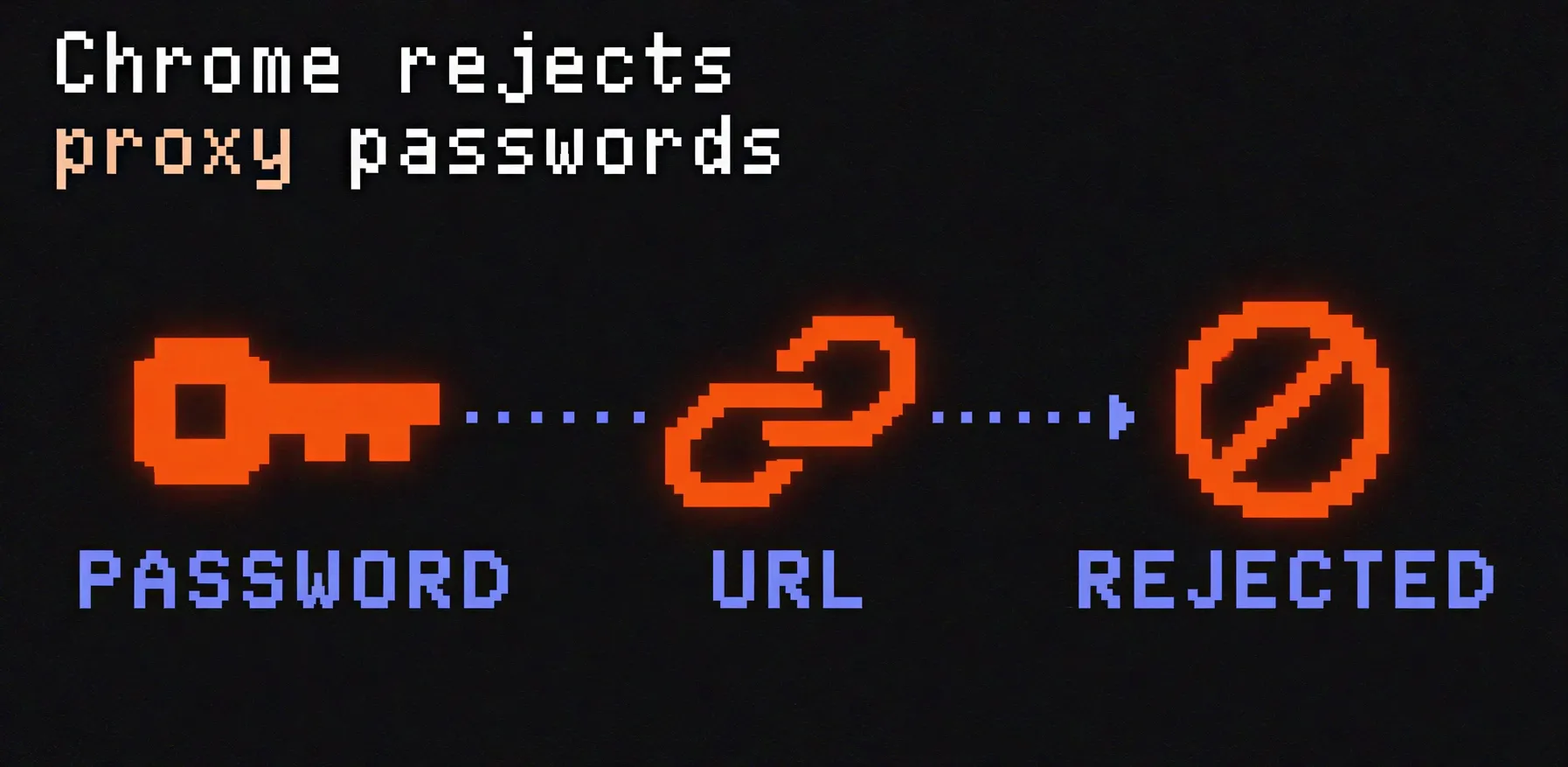
The first part of proxy_forwarder.py reads your provider's details from environment variables and defines pipe(), which copies bytes one way:
import asyncio
import base64
import os

LISTEN_PORT = int(os.environ.get("LISTEN_PORT", "8899"))
UPSTREAM = (os.environ["PROXY_HOST"], int(os.environ["PROXY_PORT"]))
TOKEN = base64.b64encode(
    f'{os.environ["PROXY_USER"]}:{os.environ["PROXY_PASS"]}'.encode()
).decode()

async def pipe(reader, writer):
    # copy bytes one way until either side closes
    try:
        while data := await reader.read(65536):
            writer.write(data)
            await writer.drain()
    except ConnectionError:
        pass
    finally:
        writer.close()
Credentials stay in environment variables, not in the file.
Next comes the handler. It reads Chrome's request headers, adds the login, and opens the connection to your provider:
async def handle(client_r, client_w):
    try:
        head = await client_r.readuntil(b"\r\n\r\n")
    except (asyncio.IncompleteReadError, ConnectionError):
        client_w.close()
        return
    lines = head.rstrip(b"\r\n").split(b"\r\n")
    # drop hop-by-hop headers so plain-HTTP requests can't reuse the connection
    lines = [l for l in lines if not l.lower().startswith((b"proxy-connection:", b"connection:"))]
    lines.insert(1, f"Proxy-Authorization: Basic {TOKEN}".encode())
    if not lines[0].startswith(b"CONNECT"):
        lines.append(b"Connection: close")
    up_r, up_w = await asyncio.open_connection(*UPSTREAM)
    up_w.write(b"\r\n".join(lines) + b"\r\n\r\n")
    await up_w.drain()
    await asyncio.gather(pipe(client_r, up_w), pipe(up_r, client_w))
Plain-HTTP requests get Connection: close. Without it, Chrome reuses the connection, and the next request reaches your provider with no login. HTTPS runs through CONNECT tunnels and isn't affected.
Finish the file with the entry point:
async def main():
    # bind to loopback only: on 0.0.0.0 this is an open proxy with your login
    server = await asyncio.start_server(handle, "127.0.0.1", LISTEN_PORT)
    async with server:
        await server.serve_forever()

if __name__ == "__main__":
    asyncio.run(main())
Start it with your provider's details (it runs in the foreground):
PROXY_HOST=gate.example.com PROXY_PORT=7000 \
PROXY_USER=your_user PROXY_PASS=your_pass \
python proxy_forwarder.py
Then point Method 1 at it: set PROXY = "http://127.0.0.1:8899" in the agent script. Nothing else changes.
I tested the forwarder with Chrome 153, driven over CDP, against a local test proxy that answers 407 to any request without the right login.
All four test pages loaded through the forwarder (two HTTP, two HTTPS), each with the credentials attached.
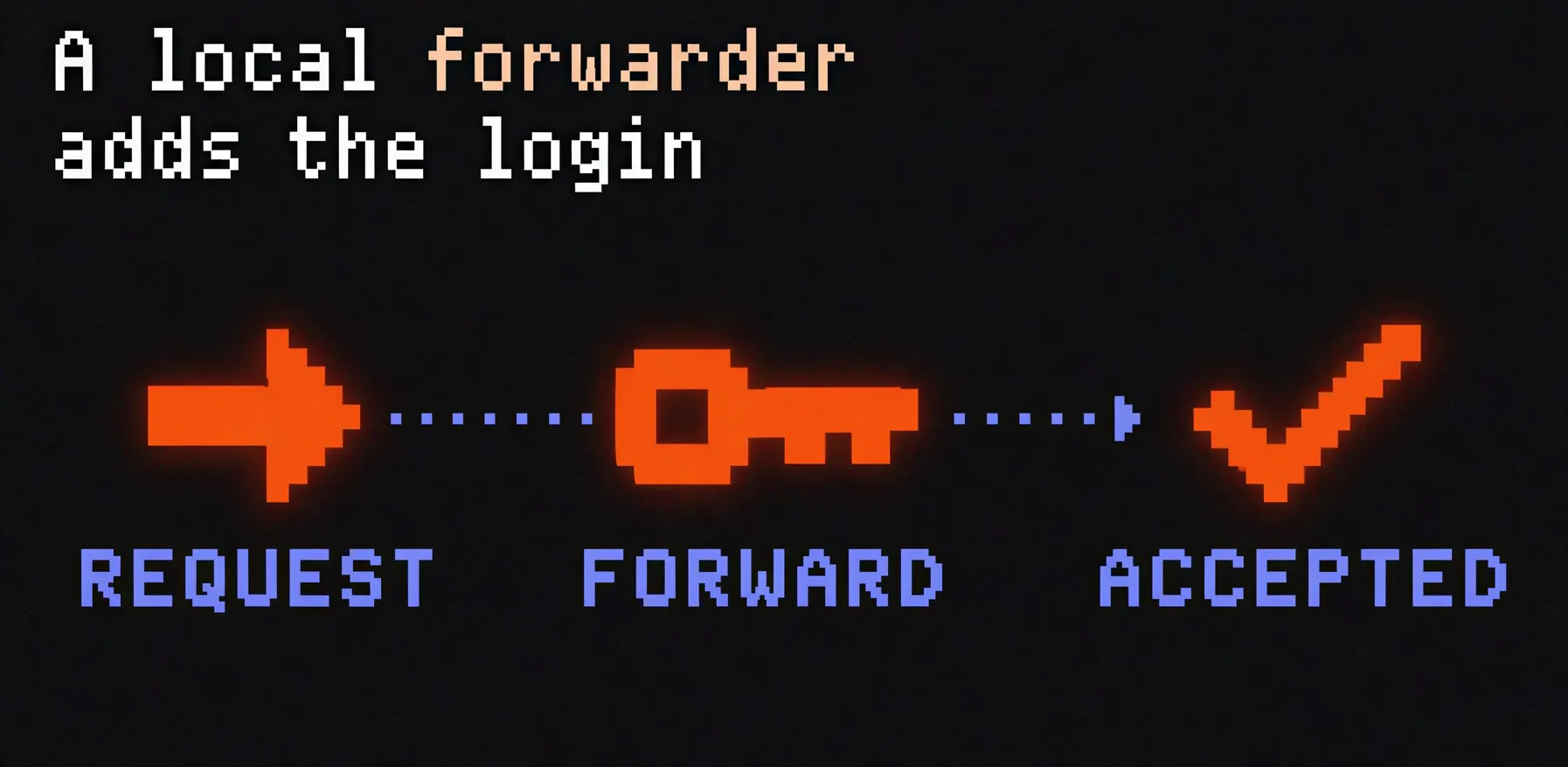
One limit: the forwarder speaks plain HTTP to your provider. That covers the standard proxy port most providers hand out, but not proxies that require TLS to the proxy itself.
Method 3: Pin browser-use 0.13 and keep ProxySettings
Method 3 stays on the last 0.x release, where Browser(proxy=ProxySettings(...)) still works and browser-use answers proxy logins itself. Pick it when you have working 0.13 code and no time to migrate.
Pin the version and pass the settings straight to Browser:
# pip install 'browser-use<1'
import asyncio
from browser_use import Agent, Browser, ChatOpenAI
from browser_use.browser import ProxySettings

browser = Browser(
    proxy=ProxySettings(
        server="http://proxy.example.com:8080",
        username="your_user",
        password="your_pass",
        bypass="localhost,127.0.0.1",
    ),
    headless=True,
)

async def main():
    agent = Agent("Open https://api.ipify.org and report the IP", llm=ChatOpenAI(model="gpt-6-luna"), browser=browser)
    print((await agent.run()).final_result())

asyncio.run(main())
ProxySettings lives in browser_use.browser, not the top-level package. In 0.13, browser-use answers the login through Chrome's Fetch.authRequired event, so you don't need a forwarder.
The tradeoff is time. 0.x won't get the fixes 1.x ships. Treat this as a bridge while you move to Method 2, not a place to settle.
Which method should you use?
- Your proxy authenticates by whitelisted IP. Method 1. One flag, no extra process.
- Your proxy needs a username and password. Method 2: Method 1 plus the forwarder.
- You have working 0.13 code and a deadline. Method 3 now, Method 2 when you have a free afternoon.
- You already run agents on Browser Use Cloud with enterprise access. Use
customProxy, covered next.
How to set up a custom proxy in Browser Use Cloud (the web version)
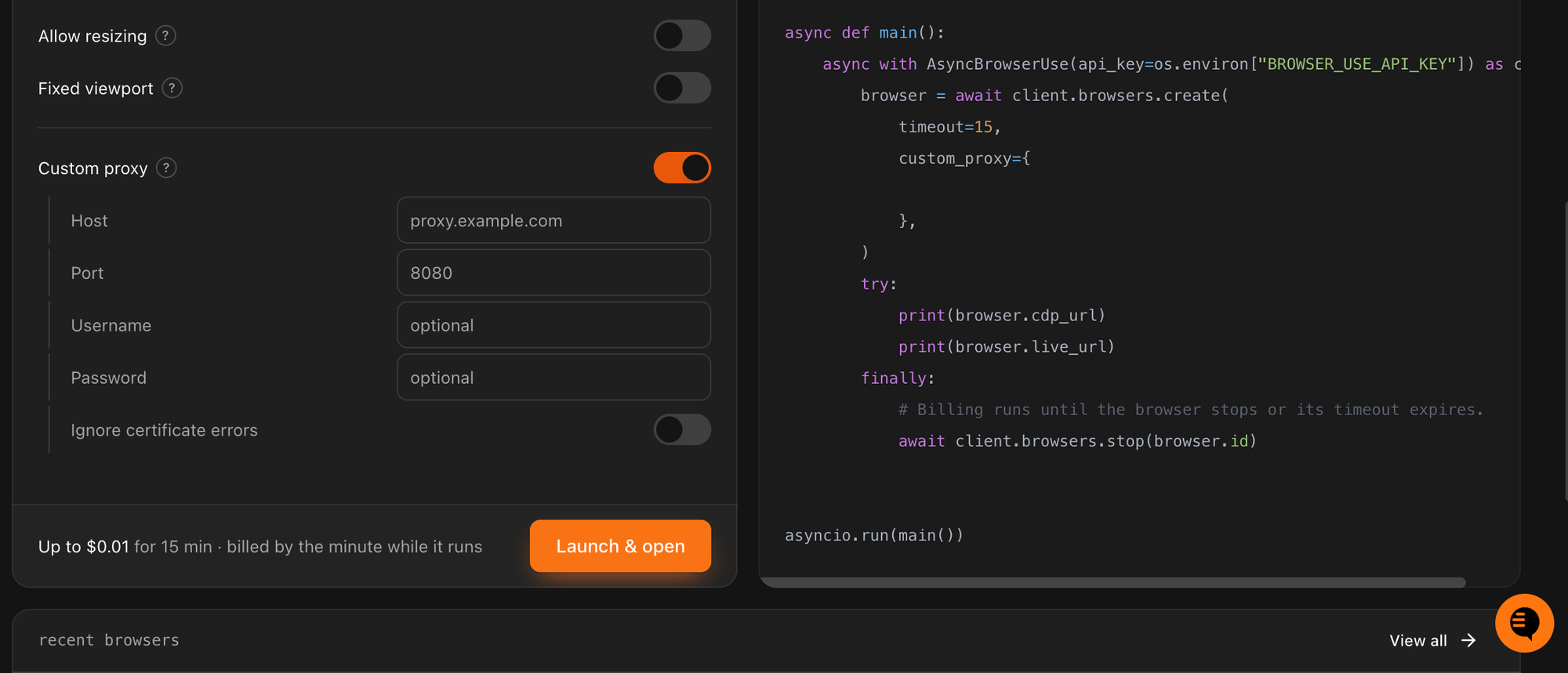
Browser Use Cloud has a Custom proxy switch on the dashboard's browser launch page. Turn it on, enter host, port and an optional login, then click Launch & open.
The same settings work from code as a custom_proxy object, for standalone browsers and hosted agent runs.
Set up a custom proxy in the Browser Use Cloud dashboard
- Sign in at cloud.browser-use.com and open your project's browsers page. The breadcrumb reads
[your project] / browsers. - Pick a timeout between 5 minutes and 4 hours. The browser bills by the minute until you stop it or the timeout runs out. For example, our launch page showed up to $0.01 for 15 minutes.
- Switch on Custom proxy. Four fields appear under it: Host, Port, Username and Password.
- Enter your proxy's host and port. Fill in username and password for a login proxy, or leave both empty if your proxy whitelists by IP.
- Leave Ignore certificate errors off. Turn it on only for a proxy that decrypts traffic, because it drops certificate checks for every site.
- Click Launch & open. The Cloud browser opens with a live view. Visit
https://api.ipify.orgin it to confirm you're on the proxy's IP.
That's the whole setup for a browser you watch or drive by hand. The proxy applies to that browser only, so set it again for every new one.
A note on access: the Cloud docs list custom proxies as an enterprise feature for projects created after 13 November 2026.
Our project had the switch. If yours doesn't, ask Browser Use support.
Reuse the dashboard settings in Python
The panel next to the form writes the matching code as you fill it in. Cleaned up, it looks like this (pip install browser-use-sdk):
import asyncio, os
from browser_use_sdk.v4 import AsyncBrowserUse

async def main():
    async with AsyncBrowserUse(api_key=os.environ["BROWSER_USE_API_KEY"]) as client:
        browser = await client.browsers.create(
            timeout=15,  # minutes
            custom_proxy={"host": "gate.example.com", "port": 7000,
                          "username": "your_user", "password": "your_pass"},
        )
        try:
            print(browser.cdp_url)   # connect Playwright or another CDP client here
            print(browser.live_url)  # watch the session in your browser
        finally:
            await client.browsers.stop(browser.id)  # billing runs until stop or timeout

asyncio.run(main())
Keep the stop() in finally. A crashed script otherwise leaves the browser billing until its timeout. Over REST, the same object goes at the top level of POST /api/v4/browsers as customProxy.
Run a hosted agent through your proxy
For an agent run, pass the proxy in browser_settings with the v4 Python SDK (pip install browser-use-sdk):
# export BROWSER_USE_API_KEY=bu_...  (create it in the dashboard settings)
from browser_use_sdk.v4 import BrowserUse

client = BrowserUse()
run = client.runs.create(
    "Open https://api.ipify.org and report the IP address on the page",
    browser_settings={
        "customProxy": {
            "host": "gate.example.com",
            "port": 7000,
            "username": "your_user",  # send both or neither
            "password": "your_pass",
        }
    },
)
run = client.runs.wait_for_completion(run.id)
print(run.result)
In REST JSON the same object sits at browserSettings.customProxy in POST /api/v4/runs. A custom proxy overrides proxyCountryCode, and a follow-up that starts a new browser needs it passed again.
Cloud custom proxy gotchas
protocoltakes"http"or"https"(TLS to the proxy itself). One docs heading says HTTP or SOCKS5, but the field table lists no SOCKS5, so test before you rely on it.exitIpcomes backnullfor custom proxies, because Browser Use sends no extra traffic through your proxy. Verify the IP with a task like the one above.- Switching a running browser uses
PATCH /api/v4/browsers/{id}/proxywith"mode": "custom"in every change. Leavemodeout and you get a 409. - Custom mode rejects
country,targetandrotatewith a 422, and it isn't available on the EU route. Rotation happens on your provider's side. - Certificates:
caBundleorcaBundleUrladd a CA for proxies that decrypt traffic.ignoreCertErrorsturns off checks for every site, so reach for it last.
Cloud or your own Chrome? Cloud bills browser time, plus $0.20/GB for traffic on your own proxy, and needs the enterprise switch. Methods 1 and 2 cost nothing beyond the proxy itself.
For the managed Cloud proxies and how Cloud compares with other hosted browsers, see the Browserbase alternatives roundup.
How to check the browser-use proxy before the agent runs
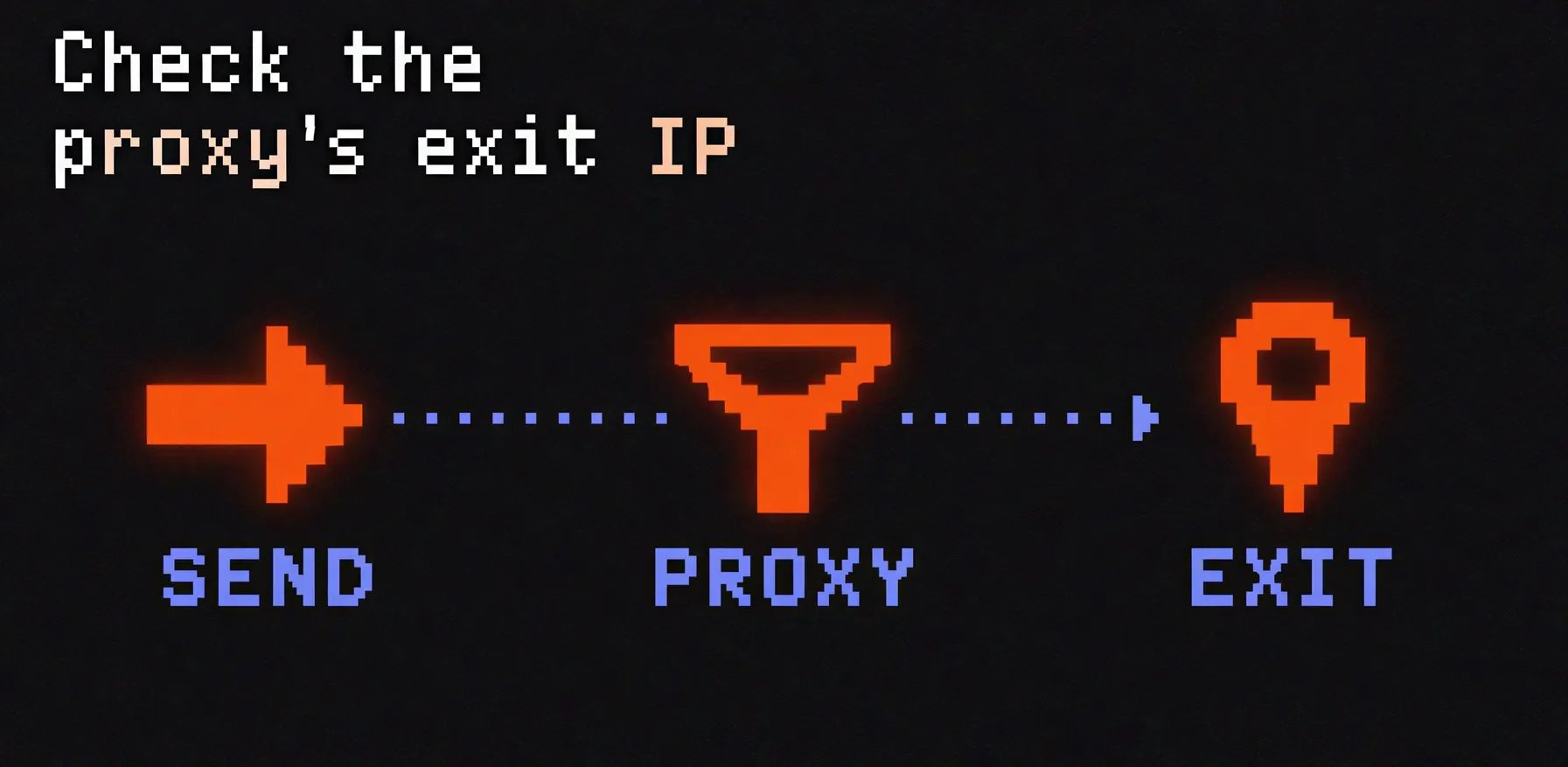
Check the proxy with Chrome alone before you spend model tokens. Run the same binary with the same flags plus --dump-dom, and it prints the page with no agent involved:
google-chrome --headless=new --user-data-dir="$(mktemp -d)" \
  --proxy-server=http://127.0.0.1:8899 \
  --dump-dom https://api.ipify.org
If the printed IP is your server's own, the proxy isn't applied. A Python requests call proves nothing here, because it doesn't use Chrome's network route.
Testing against a local server? Chrome skips the proxy for loopback addresses by default. Add --proxy-bypass-list=<-loopback>, or your local test passes without touching the proxy at all.
In my run without that flag, all four local test pages loaded fine, and the forwarder saw none of them.
How to run several browser-use agents on different proxies
Give each agent its own Chrome, DevTools port and proxy. Separate browsers keep cookies, IPs and crashes apart, which is what you want when two agents work the same site.
With logins, run one forwarder per proxy session on its own port (LISTEN_PORT=8900 for the second), then map each job to a port:
import asyncio
from browser_use import Agent, Browser, ChatOpenAI
from chrome_launcher import launch_chrome
JOBS = [  # one Chrome, one DevTools port, one proxy per agent
    ("http://127.0.0.1:8899", 9222, "Find the price of a Kindle on amazon.de"),
    ("http://127.0.0.1:8900", 9223, "Find the price of a Kindle on amazon.co.uk"),
]

async def run(proxy, port, task):
    chrome = await asyncio.to_thread(launch_chrome, proxy, port)  # don't block the loop
    try:
        browser = Browser(cdp_url=f"http://127.0.0.1:{port}")
        history = await Agent(task, llm=ChatOpenAI(model="gpt-6-luna"), browser=browser).run()
        return history.final_result()
    finally:
        chrome.terminate()

async def main():
    print(await asyncio.gather(*(run(*job) for job in JOBS)))
asyncio.run(main())
asyncio.to_thread keeps one Chrome's start-up wait from stalling the other agent. I ran two launchers side by side through two forwarders, and both Chromes' requests reached the test proxy with their logins.
What the proxy flag doesn't fix
A proxy changes the IP. It doesn't change what the browser says about itself.
A German IP with a UTC clock and an en-US language looks like a server, not a person.
Match the timezone and language to the exit country
browser-use 1.0 removed timezone_id and locale, and the docs suggest asking for them in the task. With your own Chrome, set both at launch instead:
import os
from chrome_launcher import launch_chrome

chrome = launch_chrome(
    "http://127.0.0.1:8899",
    extra=["--accept-lang=de-DE,de"],          # navigator.language and Accept-Language
    env={**os.environ, "TZ": "Europe/Berlin"},  # Intl and Date use this zone
)
In my test this switched Intl to Europe/Berlin and navigator.language to de-DE. --lang=de-DE on its own changed nothing in headless mode.
I tested on Linux; check TZ on Windows before you rely on it.
Close the WebRTC side door
WebRTC can send UDP around an HTTP proxy, and a STUN reply then exposes your real IP. Chrome's --force-webrtc-ip-handling-policy=disable_non_proxied_udp flag blocks UDP that doesn't go through the proxy.
Add it to extra and confirm on a leak test page; my offline test couldn't reach a STUN server to prove it. The WebRTC leaks guide covers the test.
Expect Chrome's own traffic on your proxy bill
Chrome talks to Google services in the background, and that traffic rides your proxy too. In my tests, every launch opened about eight tunnels to www.google.com, accounts.google.com and android.clients.google.com.
--disable-background-networking and a dozen similar flags didn't stop them in Chrome 153. A bypass list does, but don't bypass *.google.com: the agent's first Google search would leave on your real IP.
Agent code doesn't use the browser's proxy
The proxy covers Chrome only. If the agent runs Python that calls requests or urllib, those calls leave from your machine, as the browser-use docs point out.
Set HTTPS_PROXY for that process if it matters.
Where this stops working: a clean IP won't get an agent past a site that fingerprints the browser itself.
If pages still block you through a good proxy, the problem has moved past the network layer.
Troubleshooting
"net::ERR_NO_SUPPORTED_PROXIES"
Why: you put a username and password inside --proxy-server, with http:// or socks5://. Chrome rejects the whole proxy.
Fix: run the Method 2 forwarder, or whitelist your server's IP and drop the credentials.
"net::ERR_PROXY_CONNECTION_FAILED"
Why: nothing is listening at the proxy address. Usually the forwarder isn't running, or it listens on a different port from the one Chrome got.
Fix: start the forwarder first, then test it with curl -x http://127.0.0.1:8899 https://api.ipify.org.
ImportError on "from browser_use.browser import ProxySettings"
Why: you're on browser-use 1.x, which removed ProxySettings, BrowserSession and BrowserProfile. The message points you to the Cloud country code.
Fix: use Method 1 or 2, or pin browser-use<1 for Method 3.
The proxy works, but the agent still gets blocked
Why: the site runs bot management that checks more than the IP.
Fix: find out which product first. antibot-detect makes one browser-like request and reports whether it sees Cloudflare, DataDome, Akamai, Kasada and others.
It's passive detection, so a clean result doesn't rule out checks that only run in JavaScript.
FAQ
Does browser-use support SOCKS5 proxies?
Yes, as long as the SOCKS5 proxy doesn't need a login. Pass --proxy-server=socks5://host:1080 in Method 1.
Chrome has no SOCKS5 login support, so for an authenticated proxy use your provider's HTTP port through the Method 2 forwarder.
How do I bypass the proxy for some sites in browser-use?
Add --proxy-bypass-list to the Chrome flags, for example --proxy-bypass-list=localhost;*.internal. On browser-use 0.13, ProxySettings(bypass="localhost,*.internal") does the same. Chrome already bypasses loopback addresses unless you add <-loopback>.
Do I need a proxy for browser-use at all?
No, not for your own sites, staging servers or targets that don't score IP reputation.
You need one when a site blocks your server's IP range or when the agent must browse from a specific country.
Should a browser-use agent use sticky or rotating proxies?
Use a sticky session within one task and rotate between tasks.
An agent that logs in, browses and checks out needs one IP throughout, because a new IP mid-session looks like account takeover.
Which proxy type works best for browser-use agents?
Residential or ISP proxies work best on consumer sites that score IP reputation. Datacenter IPs are fine for staging sites and unprotected targets.
Agents load full pages with images, so watch bandwidth on per-GB plans.
Wrapping up
browser-use 1.0 can still use any proxy you own; it just reaches it through a Chrome you start yourself.
Launch Chrome with --proxy-server, attach with cdp_url, and put the forwarder in front when the proxy wants a login.
For context-level proxies and rotation in plain scripts, the Playwright proxy guide picks up where this one stops.