Tired of your notes scattered across apps that don't talk to each other? Blinko is an open-source, self-hosted note-taking tool that combines quick idea capture with AI-powered search.
In this guide, you'll learn how to install Blinko using Docker, configure its AI features with Ollama or OpenAI, and master its unique Blinko vs Notes workflow system.
What is Blinko and Why Should You Care?
Blinko is a self-hosted note-taking application that uses AI-powered RAG (Retrieval-Augmented Generation) to help you search and retrieve notes using natural language queries. Unlike cloud-based tools like Notion or Obsidian, your data stays on your own server.
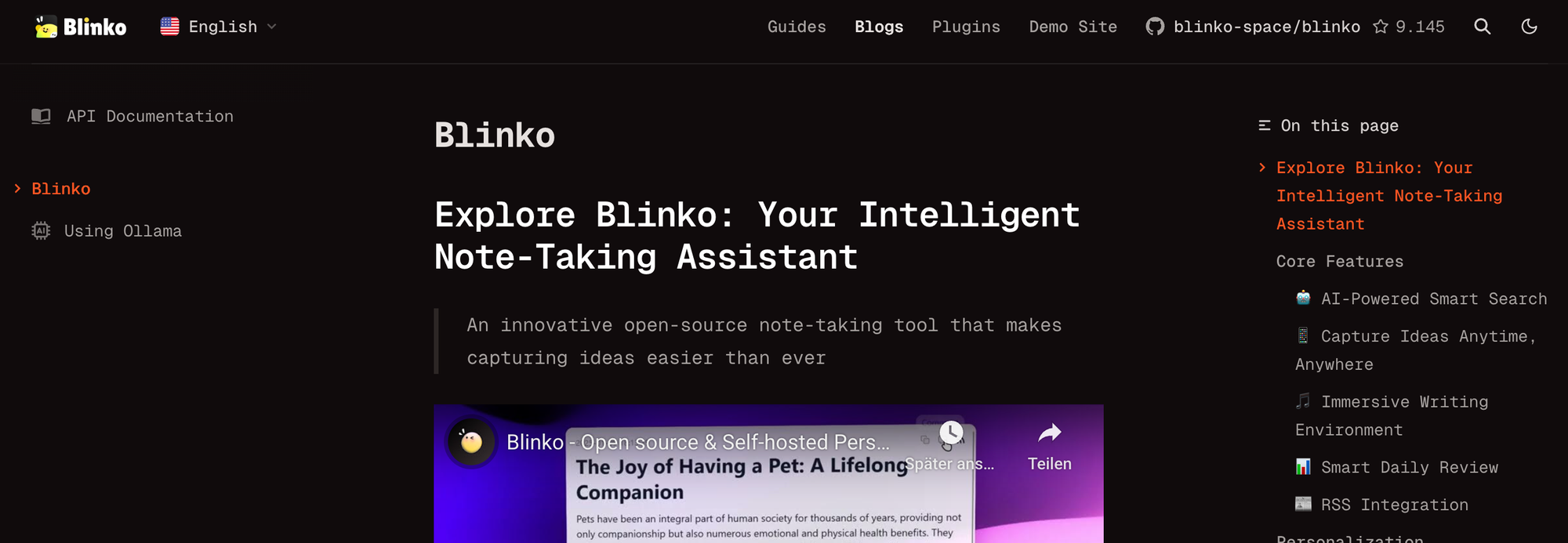
The app separates quick captures ("Blinkos") from permanent documentation ("Notes"). This dual-system approach prevents your knowledge base from becoming cluttered with temporary reminders.
Key features include:
- AI-enhanced note retrieval via OpenAI or Ollama
- Full Markdown support with rich text formatting
- Automatic tagging and note summarization
- RSS feed integration
- Music player for focused writing sessions
- Multi-platform support (web, desktop, Android)
Prerequisites Before Installing Blinko
Before diving into installation, make sure you have:
Docker installed on your machine. Visit docker.com to download and install Docker Desktop or Docker Engine.
Basic terminal knowledge for running commands and editing configuration files.
A secure secret key for authentication. Generate one with:
openssl rand -base64 32
This command outputs a random 32-byte string encoded in base64. Save this somewhere safe—you'll need it during setup.
Step 1: Install Blinko Using Docker Compose
The fastest way to deploy Blinko is with Docker Compose. This method spins up both the Blinko application and its PostgreSQL database in one go.
Create a new directory for your Blinko installation:
mkdir blinko && cd blinko
Now create a docker-compose.yml file:
nano docker-compose.yml
Paste this configuration:
networks:
  blinko-network:
    driver: bridge

services:
  blinko-website:
    image: blinkospace/blinko:latest
    container_name: blinko-website
    environment:
      NODE_ENV: production
      NEXTAUTH_SECRET: YOUR_SECURE_SECRET_HERE
      DATABASE_URL: postgresql://postgres:your_db_password@postgres:5432/postgres
    depends_on:
      postgres:
        condition: service_healthy
    volumes:
      - ./blinko-data:/app/.blinko
    restart: always
    logging:
      options:
        max-size: "10m"
        max-file: "3"
    ports:
      - 1111:1111
    healthcheck:
      test: ["CMD", "wget", "--spider", "-q", "http://blinko-website:1111/"]
      interval: 30s
      timeout: 10s
      retries: 5
      start_period: 30s
    networks:
      - blinko-network

  postgres:
    image: postgres:14
    container_name: blinko-postgres
    restart: always
    ports:
      - 5435:5432
    environment:
      POSTGRES_DB: postgres
      POSTGRES_USER: postgres
      POSTGRES_PASSWORD: your_db_password
      TZ: UTC
    volumes:
      - ./postgres-data:/var/lib/postgresql/data
    healthcheck:
      test: ["CMD", "pg_isready", "-U", "postgres", "-d", "postgres"]
      interval: 5s
      timeout: 10s
      retries: 5
    networks:
      - blinko-network
Replace YOUR_SECURE_SECRET_HERE with the secret you generated earlier. Also change your_db_password to a strong password.
Important security note: Never use default passwords in production. The NEXTAUTH_SECRET protects your authentication tokens—using a weak value exposes your instance to attacks.
Start the containers:
docker-compose up -d
The -d flag runs containers in detached mode (background). Docker pulls the necessary images and starts both services.
Check if everything is running:
docker-compose ps
You should see both blinko-website and blinko-postgres with status "Up".
Step 2: Create Your First Account
Open your browser and navigate to http://localhost:1111/signup (replace localhost with your server's IP if accessing remotely).
Enter a username and password. This creates the admin account for your Blinko instance.
After registration, you'll land on the main dashboard. The interface splits into a sidebar for navigation and a main area for writing.
Step 3: Understand the Blinko vs Notes System
Blinko uses a dual-content system that takes some getting used to. Here's the difference:
Blinkos (Quick Captures)
The Blinko section handles fleeting thoughts. Open the app, type something, hit enter. Done.
These entries support auto-archiving. You can configure them to automatically move to archive after a set period. Perfect for:
- Daily tasks and reminders
- Quick ideas you'll process later
- Temporary information
- Meeting notes that don't need permanent storage
Notes (Long-Form Content)
The Notes section stores permanent documentation. These entries support:
- Rich text formatting
- Hierarchical organization with tags
- Permanent storage without auto-archiving
Use Notes for:
- Project documentation
- Research findings
- Learning materials
- Important reference documents
The key insight: dump everything into Blinkos first, then promote valuable content to Notes during your review sessions.
Step 4: Configure AI Features with Ollama
Blinko's AI features transform how you interact with your knowledge base. Instead of keyword searches, you can ask questions like "What were my thoughts on the marketing campaign last week?"
Option A: Connect to Ollama (Local AI)
If you want complete privacy, run AI locally with Ollama.
First, install Ollama on your machine:
curl -fsSL https://ollama.com/install.sh | sh
Pull a model. For general use, Llama 3.2 works well:
ollama pull llama3.2
For the embedding model (required for RAG):
ollama pull mxbai-embed-large
Start the Ollama server:
ollama serve
By default, Ollama listens on http://localhost:11434.
Now configure Blinko. Click your username in the top-left corner, then go to Settings > AI.
Set these values:
- Model Provider: OpenAI (Ollama uses the OpenAI-compatible API)
- API Endpoint:
http://host.docker.internal:11434/v1(for Docker on Mac/Windows) orhttp://YOUR_HOST_IP:11434/v1(for Linux) - Model: Type your model name manually (e.g.,
llama3.2) - Text Embedding Model:
mxbai-embed-large
Click "Check Connection" to verify. If successful, toggle the AI features on.
Common pitfall: If the connection fails, make sure you're using the /v1 suffix on the endpoint URL. Also verify Ollama is accessible from within Docker's network.
Option B: Connect to OpenAI
For faster responses without local hardware requirements, use OpenAI's API.
Get an API key from platform.openai.com.
In Blinko's AI settings:
- Model Provider: OpenAI
- API Key: Your OpenAI API key
- Model:
gpt-4o-mini(cost-effective) orgpt-4o(better quality) - Text Embedding Model:
text-embedding-3-small
OpenAI charges per token. Expect costs of $0.01-0.10 per day with moderate usage.
Option C: Configure HTTP Proxy for AI Services
If you're in a network-restricted environment or need to route AI requests through a proxy server, Blinko has built-in HTTP proxy support.
This is useful when:
- Your server can't directly reach OpenAI or other AI providers
- You need to route traffic through a corporate proxy
- You want to use residential or datacenter proxies for reliability
- You're in a region with restricted access to AI services
Navigate to Settings > AI and scroll down to the Proxy Settings section.
Configure these fields:
- Enable HTTP Proxy: Toggle this on
- Proxy Host: Your proxy server address (e.g.,
proxy.example.comor192.168.1.100) - Proxy Port: The proxy port number (e.g.,
8080,3128) - Proxy Username: (Optional) For authenticated proxies
- Proxy Password: (Optional) For authenticated proxies
For example, if you're using a residential proxy service like Roundproxies.com, you would enter the proxy credentials provided by your service.
Example proxy configuration:
Host: us.smartproxy.com
Port: 10000
Username: your_username
Password: your_password
After configuring the proxy, click "Test Connection" to verify that Blinko can reach the AI service through your proxy.
Pro tip: If you need rotating proxies for high-volume AI requests, configure a local proxy rotation service like mitmproxy or a proxy manager, then point Blinko to your local proxy endpoint.
Step 5: Build Your RAG Knowledge Base
RAG (Retrieval-Augmented Generation) lets the AI search through your notes and provide contextual answers.
After configuring AI, you need to build the embedding index. This converts your notes into vectors the AI can search.
Go to Settings > AI and click "Rebuild" or "Force Rebuild".
This process:
- Reads all your notes
- Splits them into chunks
- Generates embeddings for each chunk
- Stores embeddings in the database
For a few hundred notes, this takes under a minute. Larger collections may take longer.
Once complete, use the AI chat feature. Type natural language queries:
- "What did I write about project deadlines?"
- "Find my notes on Docker configuration"
- "Summarize my thoughts on the marketing proposal"
The AI retrieves relevant notes and generates responses based on your actual content.
Step 6: Use the Blinko Snap Desktop App
For quick captures without opening your browser, install Blinko Snap.
Download from the official releases page.
After installation, configure it to connect to your Blinko server:
- Right-click the system tray icon
- Enter your server URL (e.g.,
http://localhost:1111) - Log in with your credentials
Now press Ctrl+Shift+Space (or Cmd+Shift+Space on Mac) to instantly open a capture window. Type your thought and press Enter.
The note syncs immediately with your Blinko server. No browser tab required.
Step 7: Set Up Tags and Organization
Tags help you categorize notes without rigid folder structures.
To add a tag, type #tagname anywhere in your note. Blinko recognizes it automatically.
For visual organization, add emojis to tags: #🎯goals, #💡ideas, #📚reading.
The sidebar shows all your tags. Click one to filter notes.
Pro tip: Enable AI auto-tagging in settings. The AI suggests tags based on note content, saving you manual work.
Step 8: Configure Backups and Data Export
Blinko stores everything in PostgreSQL. To back up your data:
docker exec blinko-postgres pg_dump -U postgres postgres > blinko_backup.sql
This creates a SQL dump of your entire database.
To restore from backup:
cat blinko_backup.sql | docker exec -i blinko-postgres psql -U postgres postgres
For automated backups, set up a cron job:
0 2 * * * docker exec blinko-postgres pg_dump -U postgres postgres > /backups/blinko_$(date +\%Y\%m\%d).sql
This runs daily at 2 AM, creating timestamped backup files.
Blinko also supports export through its web interface. Go to Settings and look for import/export options.
Step 9: Enable RSS Integration
Blinko can subscribe to RSS feeds, pulling external content directly into your knowledge base.
Go to Settings > RSS and add feed URLs.
New articles from subscribed feeds appear in a dedicated section. You can read them within Blinko and save interesting articles as notes.
This transforms Blinko from a personal note-taker into a full knowledge hub.
Step 10: Share Notes Publicly
Sometimes you need to share a note with someone who doesn't have a Blinko account.
Open any note, click the share icon, and enable public sharing. Blinko generates a unique URL.
Anyone with the link can view that specific note. Your other content remains private.
Disable sharing anytime by toggling it off in the note's settings.
Advanced: Access Blinko Remotely with Reverse Proxy
Running Blinko on your home server? Access it from anywhere with a reverse proxy.
Using Nginx, create a configuration:
server {
    listen 443 ssl;
    server_name blinko.yourdomain.com;

    ssl_certificate /path/to/cert.pem;
    ssl_certificate_key /path/to/key.pem;

    location / {
        proxy_pass http://localhost:1111;
        proxy_http_version 1.1;
        proxy_set_header Upgrade $http_upgrade;
        proxy_set_header Connection "upgrade";
        proxy_set_header Host $host;
        proxy_set_header X-Real-IP $remote_addr;
    }
}
The WebSocket headers (Upgrade and Connection) are required for Blinko's real-time features.
After setting up DNS to point to your server, access Blinko via https://blinko.yourdomain.com.
Troubleshooting Common Issues
Container won't start
Check logs:
docker-compose logs blinko-website
Common causes:
- Database not ready yet (wait for healthcheck)
- Invalid
DATABASE_URLformat - Port 1111 already in use
AI connection fails
If using Ollama inside Docker:
- Use
host.docker.internalinstead oflocalhoston Mac/Windows - On Linux, use your actual machine IP or add
--network hostto the Ollama container
Verify Ollama is running:
curl http://localhost:11434/api/tags
Notes not appearing in AI search
The embedding index needs rebuilding. Go to Settings > AI and click "Force Rebuild".
Slow performance
Check available disk space. PostgreSQL struggles when storage runs low.
Also verify Docker resource allocation. On Docker Desktop, increase memory to at least 4GB.
Final Thoughts
Blinko fills a gap in the note-taking landscape. It gives you Notion-like features with Obsidian-style privacy, all wrapped in an AI-powered interface.
The Blinko/Notes dual system takes adjustment. Start by dumping everything into Blinkos, then promote important content during weekly reviews.
AI features require setup effort but pay off quickly. Natural language search eliminates the "where did I put that?" problem that plagues large note collections.
For self-hosters concerned about data ownership, Blinko checks every box. Your notes stay on your hardware. AI processing can happen entirely locally with Ollama.

![IPRoyal vs Oxylabs: Which provider is better? [2026]](https://cdn.roundproxies.com/blog-images/2026/02/iproyal-vs-oxylabs-1.png)