
Standard scrapers get blocked. You rotate headers, swap proxies, add random delays — and the target site still catches you after a few hundred requests. The problem isn't your scraping logic. It's your browser fingerprint.
Linken Sphere solves this by giving every scraping session a unique, realistic device identity. But most guides stop at "paste your proxy credentials here." They skip the part that actually matters: wiring Linken Sphere's Local API into an automated pipeline that creates sessions, connects via CDP, scrapes data, and tears everything down — no manual clicks required.
This tutorial covers the full workflow. By the end, you'll have a Python script that spins up fingerprinted browser sessions through Linken Sphere's API and scrapes pages using Puppeteer or Playwright — all without touching the GUI.
What Is Linken Sphere?
Linken Sphere is an antidetect browser built on Chromium that isolates each browsing session behind a unique device fingerprint. It spoofs Canvas, WebGL, AudioContext, fonts, screen resolution, and dozens of other signals that websites use to identify automated traffic. Each session gets its own cookies, proxy, and fingerprint config — making it look like a separate real device to any detection system.
For scraping, the key feature is its Local API. This REST API lets you create, launch, and stop sessions programmatically. Once a session is running, it exposes a Chrome DevTools Protocol (CDP) endpoint. You connect Puppeteer, Playwright, or Selenium to that endpoint and control the browser like any other automation target — except this one passes bot detection.
Linken Sphere supports Windows and macOS. The Local API is available on the Pro plan ($160/month) and above.
Why Use an Antidetect Browser for Scraping?
Regular headless Chrome leaks automation signals everywhere. Even with stealth plugins, sites running Cloudflare, DataDome, or PerimeterX can fingerprint your browser and flag it as a bot.
Linken Sphere attacks this problem at the browser level. Instead of patching leaks after the fact, it generates fingerprints pulled from a pool of real devices. The Hybrid 2.0 engine handles Canvas noise, WebGL hashes, and navigator properties automatically.
Three scenarios where this matters most:
- Scraping sites with aggressive bot detection. E-commerce platforms, travel aggregators, and social media sites invest heavily in fingerprinting. A standard headless browser gets flagged within minutes.
- Running multiple concurrent sessions. Each session needs to look like a different user on a different device. Linken Sphere isolates sessions completely — cookies, storage, fingerprints, and proxy are all independent.
- Long-running scraping jobs. Sessions that persist over hours or days need consistent identities. Linken Sphere saves session state, so you can resume without rebuilding the fingerprint.
If your targets don't use fingerprinting — basic blogs, public APIs, simple HTML pages — this setup is overkill. Use Scrapy or plain Requests instead.
Linken Sphere vs. Stealth Plugins
You might wonder why you can't just use puppeteer-extra-plugin-stealth or playwright-stealth. Those plugins patch known detection vectors in headless Chrome — navigator.webdriver, Chrome runtime objects, WebGL vendor strings.
The problem is they only patch known vectors. Detection services update faster than open-source plugins. A stealth plugin that worked last month might fail today because DataDome added a new Canvas fingerprint check.
Linken Sphere takes a different approach. Instead of patching a standard browser, it generates complete fingerprints from real device data. The Canvas hash, WebGL renderer, font list, and audio context all come from an actual measured device — they're internally consistent because they were captured from the same hardware.
That consistency is what detection systems check for. A stealth plugin might spoof the WebGL renderer to "NVIDIA GeForce GTX 1080" but leave the Canvas hash from a completely different GPU. Linken Sphere's Hybrid 2.0 engine pulls all values from a single real-device snapshot, so they match.
The tradeoff is cost and complexity. Stealth plugins are free and take two lines of code. Linken Sphere starts at $160/month for API access and adds infrastructure overhead. Choose based on your target's detection sophistication.
Prerequisites
Before you start, you'll need:
- Linken Sphere installed and running (Pro plan or higher for API access)
- Python 3.9+ with
requestsinstalled - Node.js 18+ with
puppeteer-coreorplaywright(for browser automation) - Residential proxies — one per session for best results
- Basic familiarity with REST APIs and browser automation
Step 1: Enable the Local API
Linken Sphere's API is off by default. You need to set a port before it accepts connections.
Open the Linken Sphere app and navigate to Preferences. Find the API port field and enter a port number — 35555 is a common choice. Save and restart the app.
The API now listens at http://localhost:35555. Every endpoint returns JSON.
Test the connection with a quick curl:
curl http://localhost:35555/sessions
You should get a JSON array of existing sessions (empty if you haven't created any). If you get a connection refused error, double-check that the port is set and the app is running.
One thing to note: the API only works while Linken Sphere is open and you're logged in. Close the app and the API goes dark.
Step 2: Create a Session via the API
A "session" in Linken Sphere is what other tools call a profile — an isolated browser environment with its own fingerprint, proxy, and data.
Here's a Python function that creates a new session with a proxy attached:
import requests

LS_API = "http://localhost:35555"

def create_session(name, proxy_host, proxy_port, proxy_user, proxy_pass):
    """Create a new Linken Sphere session with proxy and auto-generated fingerprint."""
    payload = {
        "name": name,
        "connection": {
            "type": "http",
            "host": proxy_host,
            "port": proxy_port,
            "login": proxy_user,
            "password": proxy_pass
        },
        "config": {
            "type": "hybrid"  # Uses Hybrid 2.0 fingerprint engine
        }
    }
    resp = requests.post(f"{LS_API}/sessions", json=payload)
    resp.raise_for_status()
    return resp.json()["uuid"]
The config.type set to "hybrid" tells Linken Sphere to pull a fingerprint from its real-device database. This is almost always what you want for scraping — it generates a consistent, believable identity in one shot.
The response includes a uuid — save this. You'll need it for every subsequent action on this session.
Step 3: Start the Session and Get the CDP Endpoint
Creating a session doesn't launch a browser. You need to start it explicitly.
def start_session(uuid):
    """Start a session and return the CDP WebSocket URL."""
    resp = requests.post(f"{LS_API}/sessions/{uuid}/start")
    resp.raise_for_status()
    data = resp.json()
    # The response includes the CDP WebSocket endpoint
    return data.get("cdp_url") or data.get("ws_url")
When a session starts, Linken Sphere opens a Chromium instance with all the fingerprint spoofing active. It also exposes a CDP WebSocket URL — something like ws://localhost:XXXXX/devtools/browser/....
This URL is your bridge. Any tool that speaks Chrome DevTools Protocol can connect to it and drive the browser.
Give the session a couple of seconds after starting — the browser needs time to initialize. A 3-second sleep is usually enough, but you can poll the session status endpoint if you want to be precise.
import time

def wait_for_session(uuid, timeout=15):
    """Poll until session is fully running."""
    for _ in range(timeout):
        resp = requests.get(f"{LS_API}/sessions/{uuid}")
        status = resp.json().get("state", "")
        if status == "running":
            return True
        time.sleep(1)
    raise TimeoutError(f"Session {uuid} failed to start within {timeout}s")
Step 4: Connect Puppeteer and Scrape
Now connect Puppeteer to the running session via its CDP endpoint. Since the browser is already running inside Linken Sphere, you use puppeteer-core (not the full puppeteer package — you don't need it to download Chromium).
// scrape.js
const puppeteer = require("puppeteer-core");

async function scrape(cdpUrl, targetUrl) {
  // Connect to the Linken Sphere session via CDP
  const browser = await puppeteer.connect({
    browserWSEndpoint: cdpUrl,
    defaultViewport: null // Use the session's configured resolution
  });

  const page = await browser.newPage();
  await page.goto(targetUrl, { waitUntil: "networkidle2" });

  // Example: extract all product titles from an e-commerce page
  const titles = await page.$$eval(".product-title", (elements) =>
    elements.map((el) => el.textContent.trim())
  );

  console.log(JSON.stringify(titles, null, 2));

  await page.close();
  // Disconnect without closing — session stays alive in Linken Sphere
  await browser.disconnect();
}

// CDP URL passed as command-line argument
const cdpUrl = process.argv[2];
const target = process.argv[3] || "https://example.com";
scrape(cdpUrl, target);
Run it by passing the CDP URL from Step 3:
node scrape.js "ws://localhost:12345/devtools/browser/abc-123" "https://target-site.com/products"
The critical detail here is browser.disconnect() instead of browser.close(). Closing the browser would kill the Linken Sphere session. Disconnecting detaches Puppeteer while keeping the session alive — so you can reconnect later or clean up through the API.
Step 5: Alternative — Connect With Playwright (Python)
If you prefer staying in Python for the entire pipeline, Playwright works just as well over CDP.
from playwright.sync_api import sync_playwright

def scrape_with_playwright(cdp_url, target_url):
    """Connect Playwright to a running Linken Sphere session and scrape."""
    with sync_playwright() as p:
        # Connect to existing browser via CDP
        browser = p.chromium.connect_over_cdp(cdp_url)
        context = browser.contexts[0]  # Use the existing context
        page = context.new_page()

        page.goto(target_url, wait_until="networkidle")

        # Example: scrape product names and prices
        products = page.eval_on_selector_all(
            ".product-card",
            """elements => elements.map(el => ({
                name: el.querySelector('.name')?.textContent?.trim(),
                price: el.querySelector('.price')?.textContent?.trim()
            }))"""
        )

        page.close()
        browser.close()  # Disconnects from CDP, doesn't kill session
        return products
Playwright's connect_over_cdp method handles the WebSocket handshake. You get the same fingerprint-protected session, just with Python syntax.
One thing that trips people up: browser.contexts[0] grabs the context that Linken Sphere already created. Don't create a new context — that would bypass the fingerprint settings.
Step 6: Stop and Clean Up Sessions
After scraping, stop the session through the API. This frees resources and saves the session state (cookies, local storage) for reuse.
def stop_session(uuid):
    """Stop a running session."""
    resp = requests.post(f"{LS_API}/sessions/{uuid}/stop")
    resp.raise_for_status()

def delete_session(uuid):
    """Permanently delete a session and its data."""
    resp = requests.delete(f"{LS_API}/sessions/{uuid}")
    resp.raise_for_status()
For recurring scraping jobs, stop the session but don't delete it. Next time, start the same session and it resumes with the same cookies and fingerprint, the site sees a returning visitor, not a fresh bot.
For one-off jobs, delete when done to keep your session list clean.
Putting It All Together: Full Pipeline Script
Here's the complete Python orchestrator that ties every step together:
import requests
import subprocess
import time
import json

LS_API = "http://localhost:35555"

def run_scraping_job(proxy, target_url):
    """Full pipeline: create session, scrape, clean up."""
    # 1. Create session
    session_uuid = create_session(
        name=f"scrape-{int(time.time())}",
        proxy_host=proxy["host"],
        proxy_port=proxy["port"],
        proxy_user=proxy["user"],
        proxy_pass=proxy["pass"]
    )
    print(f"Created session: {session_uuid}")

    try:
        # 2. Start session and get CDP URL
        cdp_url = start_session(session_uuid)
        wait_for_session(session_uuid)
        print(f"Session running. CDP: {cdp_url}")

        # 3. Run Puppeteer scraper as subprocess
        result = subprocess.run(
            ["node", "scrape.js", cdp_url, target_url],
            capture_output=True, text=True, timeout=120
        )

        if result.returncode == 0:
            data = json.loads(result.stdout)
            print(f"Scraped {len(data)} items")
            return data
        else:
            print(f"Scraper error: {result.stderr}")
            return []

    finally:
        # 4. Always stop the session, even on failure
        stop_session(session_uuid)
        print(f"Session stopped: {session_uuid}")


# Example usage
if __name__ == "__main__":
    proxy = {
        "host": "geo.example.com",
        "port": 1080,
        "user": "your_user",
        "pass": "your_pass"
    }
    results = run_scraping_job(proxy, "https://target-site.com/products")

    with open("output.json", "w") as f:
        json.dump(results, f, indent=2)
The try/finally block is non-negotiable. If your scraper crashes mid-run, the session keeps burning resources inside Linken Sphere until you manually stop it. Always clean up.
Scaling to Multiple Sessions
The real power of this setup shows when you run multiple sessions in parallel. Each session gets a different proxy, different fingerprint, and appears as a completely separate user.
from concurrent.futures import ThreadPoolExecutor

def scrape_multiple(proxies, urls):
    """Run parallel scraping jobs across multiple sessions."""
    all_results = []

    with ThreadPoolExecutor(max_workers=5) as executor:
        futures = []
        for proxy, url in zip(proxies, urls):
            future = executor.submit(run_scraping_job, proxy, url)
            futures.append(future)

        for future in futures:
            result = future.result()
            all_results.extend(result)

    return all_results
Keep max_workers under your plan's session limit. Pro plan supports 500 sessions, but your machine's RAM is the real bottleneck. Each Chromium instance eats 200-400 MB. Five concurrent sessions is a safe starting point on a 16 GB machine.
Session Reuse Strategy for Recurring Scrapes
If you scrape the same target regularly, don't create fresh sessions each time. Instead, create a pool of sessions once and reuse them across runs.
def get_or_create_session_pool(pool_size, proxies):
    """Create sessions only if they don't already exist."""
    resp = requests.get(f"{LS_API}/sessions")
    existing = {s["name"]: s["uuid"] for s in resp.json()}

    pool = []
    for i in range(pool_size):
        name = f"scrape-pool-{i}"
        if name in existing:
            pool.append(existing[name])
        else:
            uuid = create_session(name, **proxies[i])
            pool.append(uuid)
    return pool
A reused session accumulates cookies, browsing history, and local storage over time. To the target site, it looks like a real person who visits regularly — not a fresh bot spawning every morning at 6 AM.
This is especially effective for e-commerce sites and social platforms that track user behavior patterns. A session with two weeks of cookie history gets far less scrutiny than one that appeared five minutes ago.
Proxy Assignment
Assign one residential proxy per session and keep it consistent. Don't rotate proxies within a session — that's a dead giveaway. If you need geographic diversity, create separate sessions for each geo-target with location-appropriate proxies.
For a scraping pool of 10 sessions hitting US e-commerce sites, you'd want 10 different US residential IPs. Datacenter proxies work for less protected targets, but residential IPs are worth the cost when fingerprint detection is involved.
Common Errors and Fixes
"Connection refused" on API calls
The API port isn't set, or Linken Sphere isn't running. Open Preferences, set the port, restart the app.
CDP connection drops after a few seconds
The session wasn't fully initialized when Puppeteer connected. Add a longer wait or use the polling function from Step 3. Three seconds is usually enough, but high-latency proxies need more.
Session starts but pages don't load
Your proxy is dead or misconfigured. Linken Sphere has a built-in proxy checker — use it through the API or GUI before starting your scrape. Bad proxies are the number-one cause of failed scraping runs.
"Session limit reached" error
Your plan's concurrent session cap. Stop sessions you're not actively using. The API makes this easy to automate — add a cleanup sweep before starting new jobs.
Fingerprint detected as bot on target site
Your config might have inconsistencies. Run the session through CreepJS and check for mismatches. Common culprit: using a mobile fingerprint config with a desktop-resolution proxy location. Make sure your fingerprint type (desktop vs. mobile) matches your proxy's expected device profile.
Slow session startup (10+ seconds)
Usually caused by a slow proxy handshake. Test your proxy speed outside of Linken Sphere first. Also check if you have too many extensions loaded in the session config — each extension adds startup time.
Scheduling Recurring Scrapes
For production scraping, you'll want to run jobs on a schedule. A simple cron job works:
# Run every day at 2 AM
0 2 * * * cd /path/to/project && python pipeline.py >> /var/log/scraper.log 2>&1
Add error handling to your pipeline script that sends alerts on failure — a Slack webhook or email notification. Scraping jobs fail silently more often than they fail loudly, and stale data is worse than no data.
For more complex scheduling with retry logic, use a task runner like Celery or even a simple systemd timer. The key is making sure failed sessions get cleaned up regardless of what caused the failure.
Linken Sphere Plans: What You Actually Need
Not every plan includes API access. Here's what matters for scraping automation:
| Plan | Sessions | Local API | Price |
|---|---|---|---|
| Pure | 30 | No | $30/mo |
| Light | 150 | No | $90/mo |
| Pro | 500 | Yes | $160/mo |
| Premium | 1,000+ | Yes | $300/mo |
The Pro plan is the minimum for automation. Without the Local API, you're stuck clicking through the GUI for every session — which defeats the purpose.
If you're running fewer than 50 concurrent sessions, Pro is the sweet spot. Premium only makes sense if you're operating at scale with hundreds of parallel scraping workers.
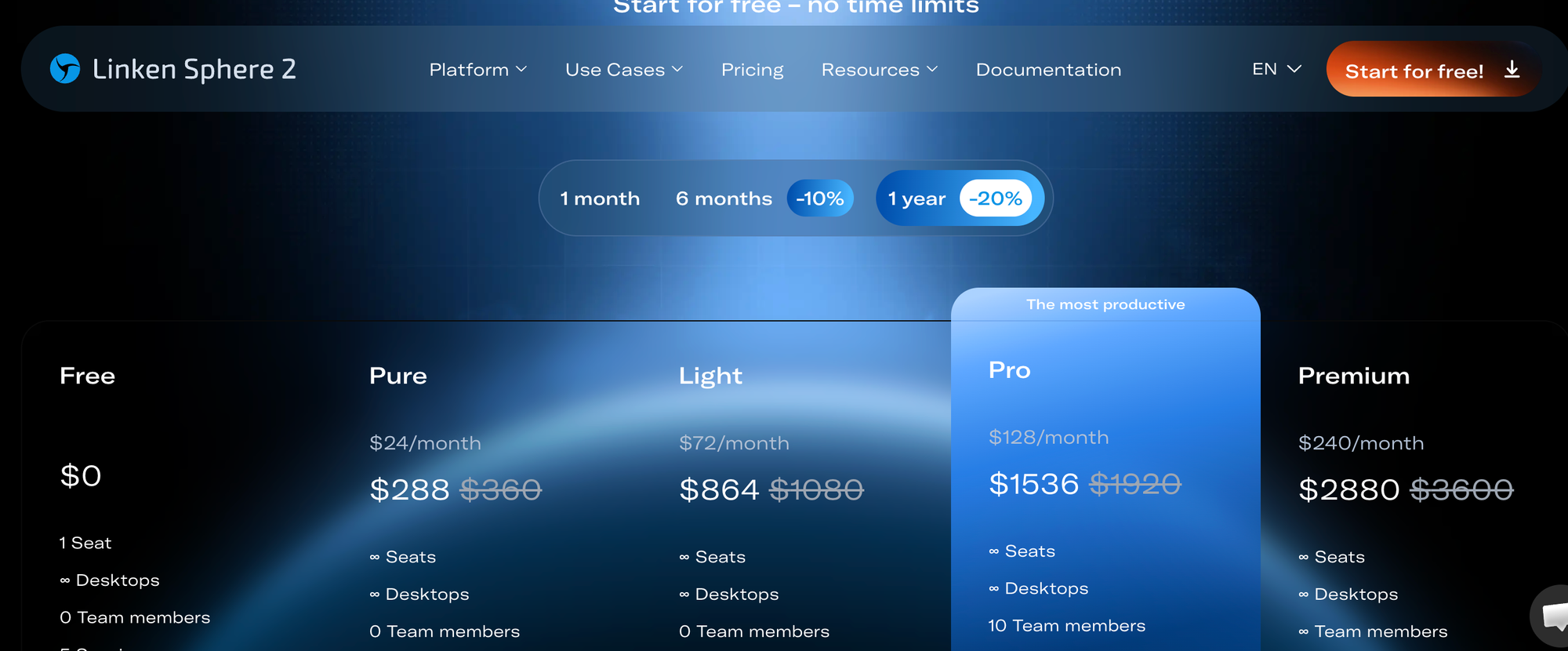
Annual billing gets you 40% off, which brings Pro down to roughly $96/month. Worth it if you're committed to this stack long-term.
Best Practices
Rotate proxies per session, not per request. Linken Sphere sessions are designed to look like persistent users. Changing the IP mid-session is a detection signal. Assign one residential proxy per session and keep it for the duration.
Use the warmup feature for sensitive targets. Before hitting your actual target, let the session browse a few generic sites. Linken Sphere's warmup function automates this — it visits a list of URLs to build realistic cookies and history. This matters for sites that check browsing patterns.
Save sessions for recurring jobs. If you scrape the same site daily, reuse the same session. A "returning visitor" with existing cookies gets less scrutiny than a fresh profile every time.
Monitor your fingerprint quality. Run your sessions through BrowserLeaks or CreepJS before pointing them at production targets. If the fingerprint has inconsistencies, fix the config before wasting proxy bandwidth.
Respect rate limits even when you can bypass detection. Antidetect browsers prevent fingerprint-based blocking, but hammering a server with rapid requests will still trigger IP-based rate limits. Add reasonable delays between page loads — 2 to 5 seconds per page is a good baseline.
Wrapping Up
Linken Sphere's Local API turns a GUI-based antidetect browser into a programmable scraping backend. The workflow is straightforward: create a session via REST, grab the CDP endpoint, connect your automation tool, scrape, and clean up.
The real value isn't in any single feature. It's in the combination: realistic fingerprints, session isolation, proxy management, and programmatic control — all in a single tool that doesn't require you to patch Chromium yourself.
Start with a single session to prove the pipeline works against your target. Then scale horizontally by adding sessions with different proxies. Keep your session cleanup disciplined, and you'll have a scraping setup that handles fingerprint-heavy sites without burning through infrastructure.





![Web Scraping with Gologin tutorial [2026]](https://cdn.roundproxies.com/blog-images/2026/01/gologin-1.png)