Running multiple accounts without getting banned sounds impossible. Until you understand what actually triggers bans.
Platforms don't just look at your login credentials. They track your browser fingerprint, your IP address, and dozens of other signals that link your accounts together.
Change one thing? You're still exposed. Change everything? You become invisible.
That's where anti-detect browsers and ISP proxies come in. This guide walks you through setting up ixBrowser with proxy connections so each account operates in complete isolation.
Why ixBrowser?
Anti-detect browsers aren't new. But most of them charge premium prices for basic functionality.
ixBrowser breaks that pattern. It generates unique browser fingerprints for every profile you create. Each profile mimics a completely separate device with its own hardware specs, browser configuration, and system settings.
The fingerprint spoofing holds up against serious scrutiny. Sites like iphey, pixelscan, and browserscan — built specifically to detect fake fingerprints — show clean results.
What you get with ixBrowser:
The free tier includes 10 new profiles daily with unlimited total profiles. Paid plans unlock API access, cloud storage, and team collaboration features starting at $3.99/month.
Built-in tools handle extension management, profile transfers, and bulk operations. There's also an integrated proxy marketplace if you need quick access to IPs.
For teams, permission controls let you share profiles without exposing sensitive credentials.
Connecting Proxies to ixBrowser
Fingerprint masking solves half the problem. The other half is IP isolation.
Without unique IPs, platforms can still connect your accounts through shared network data. ISP proxies work best here because they use residential IP addresses assigned by real internet providers — making them nearly impossible to detect.
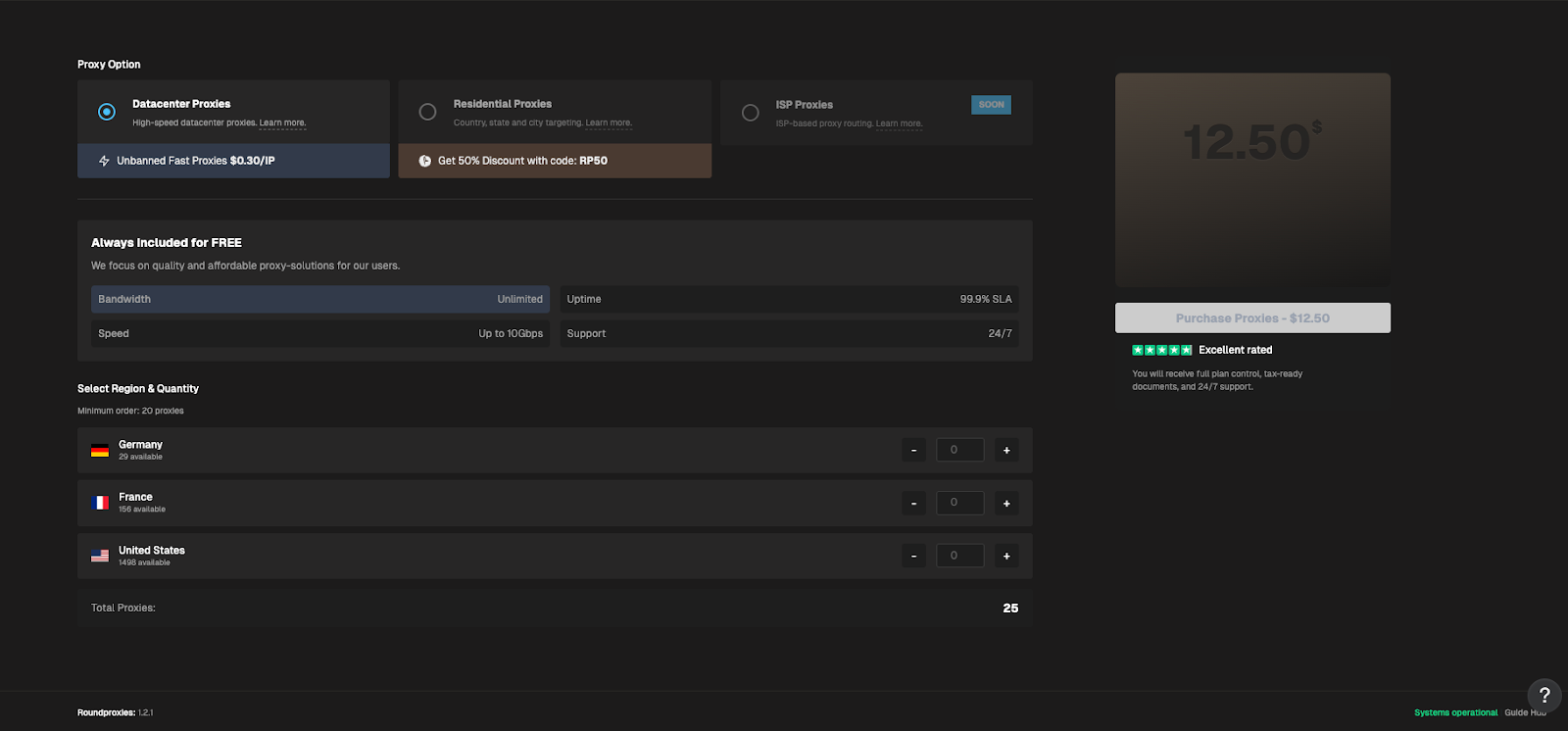
You can pick up ISP proxies from Roundproxies at https://app.roundproxies.com/signup. Create an account, grab a package, and you're ready to connect.
ixBrowser supports two configuration methods depending on how many proxies you're working with.
How to Set Up Roundproxies in ixBrowser
Now let's connect your Roundproxies ISP proxies to ixBrowser.
You can get whatever proxies you would need from Roundproxies.
Just head over to https://app.roundproxies.com/signup and create an account and purchase yourself a package of proxies. Thats it.
Two options: single proxy setup or batch proxy setup.
Method 1: Adding a Single Proxy
Best for testing or running a handful of accounts.
Step 1: Download and Install ixBrowser
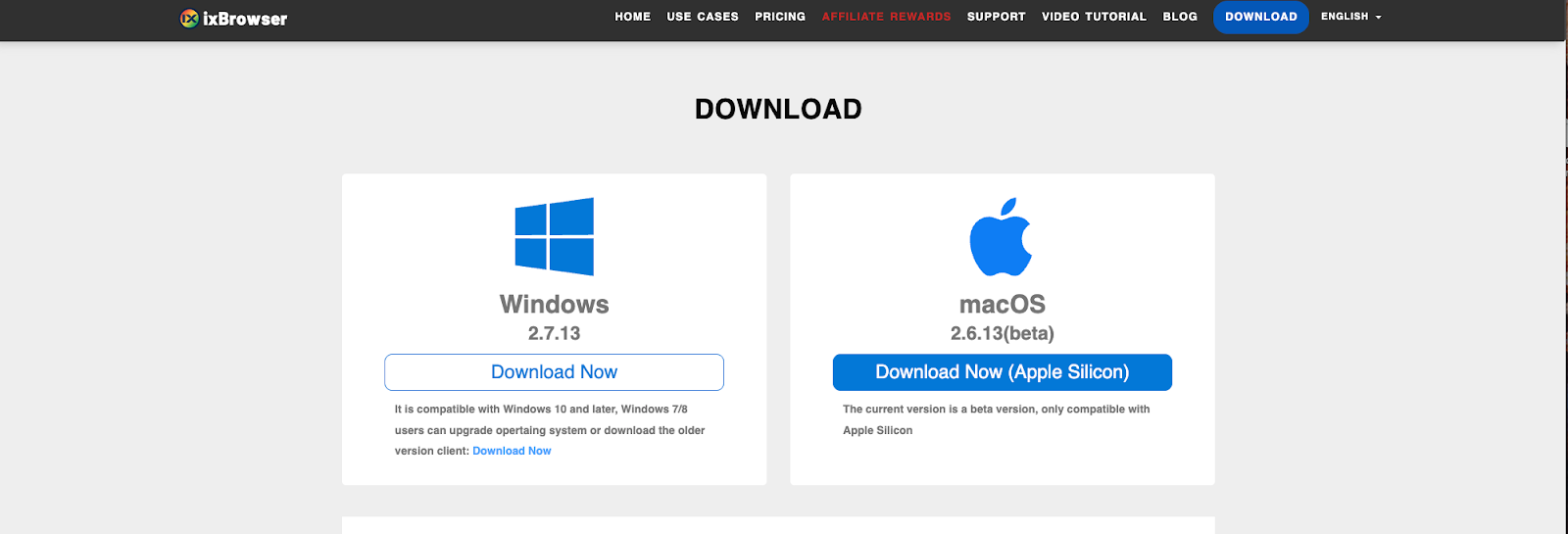
Go to the ixBrowser website and click Download.
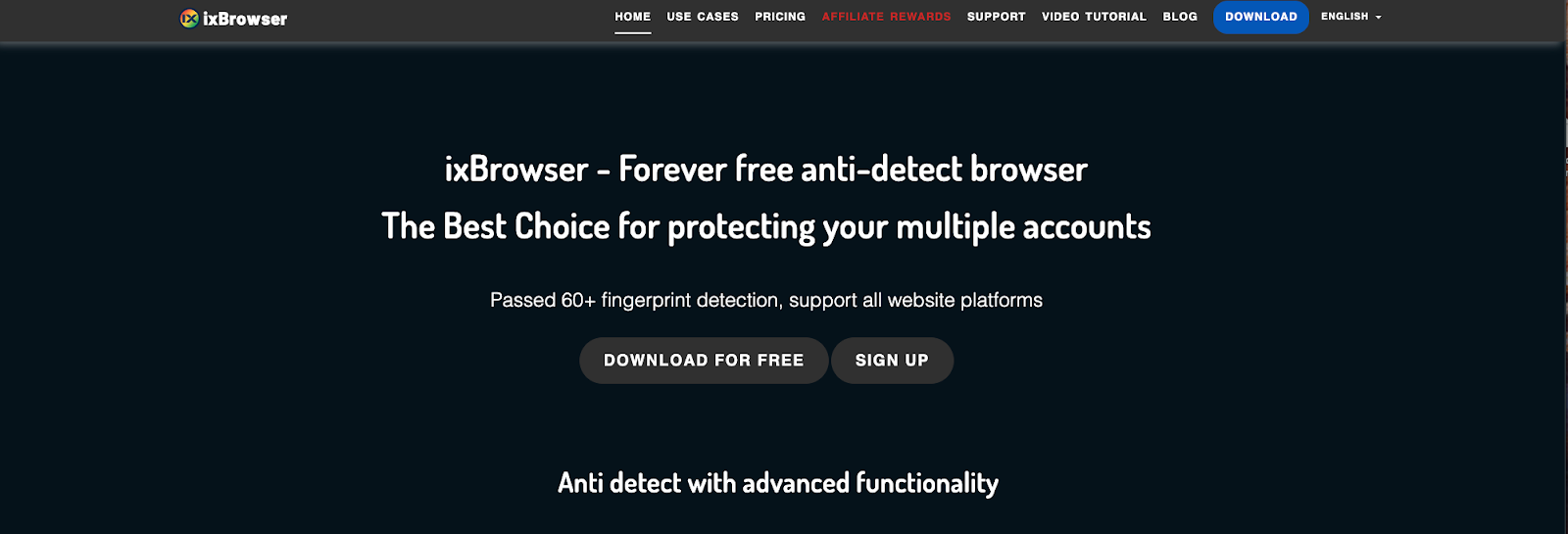
Run the installer. Choose your installation path. Click Install.
Done.
Step 2: Create Your Account
After installation, you'll land on the account creation page.
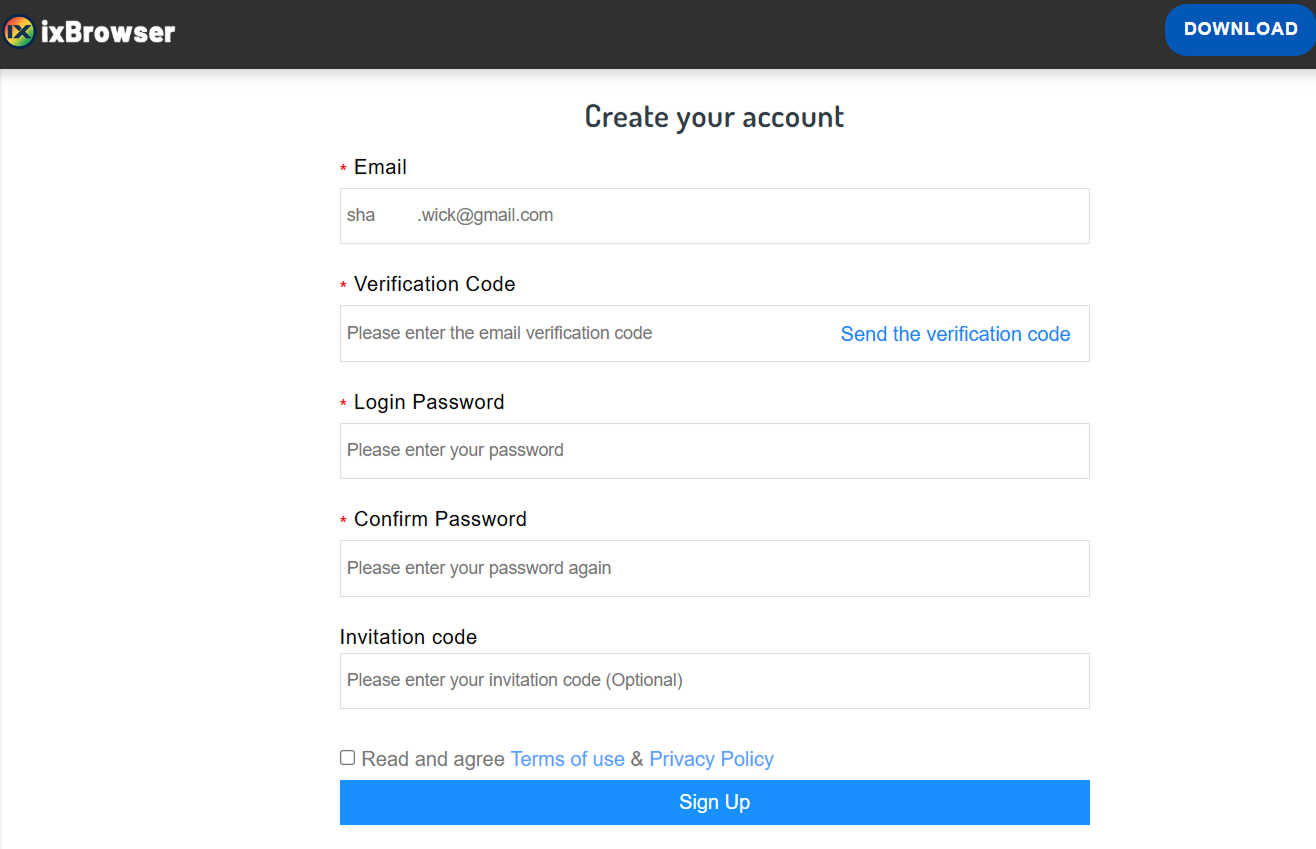
Enter your email, username, and password. Click Sign Up.
Step 3: Access Proxy Settings
Once you're logged in, look at the right navigation menu.
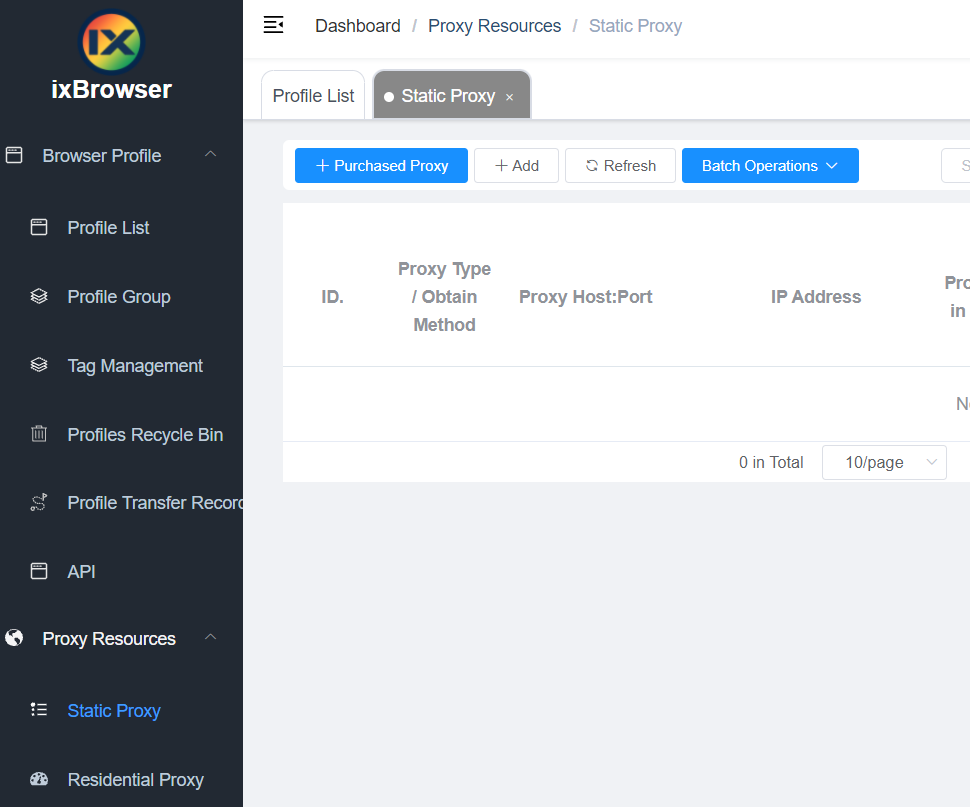
Click Proxy Resources → Static Proxy.
This opens the proxy setup screen.
Step 4: Enter Your Roundproxies Details
Fill in the fields:
- Proxy Type: Select HTTP, HTTPS, or SOCKS5 (depending on your Roundproxies plan)
- Proxy Host: Your Roundproxies IP address
- Proxy Port: The port number provided
- Proxy Account: Your Roundproxies username
- Password: Your Roundproxies password
Click Confirm to save.
That's it. Your proxy is now connected.
Option B: Set Up Batch Proxies
Got multiple proxies? Add them all at once.
Step 1: Access Batch Proxy Settings
From the ixBrowser home page, go to:
Proxy Resources → Static Proxy → Batch Operations → Add in Batches
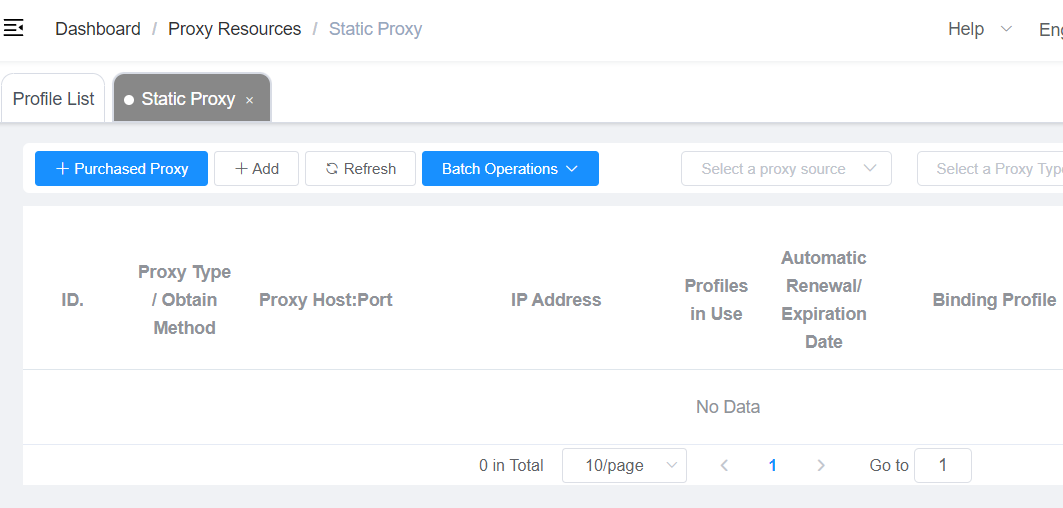
Step 2: Enter Your Proxies
Use this format:
proxyip:port:username:password
One proxy per line. You can add up to 200 proxies at once.
Supported types: HTTP, HTTPS, SSH, SOCKS5.
If you don't specify a type, it defaults to HTTP.
Step 3: Confirm
Click Confirm.
ixBrowser automatically adds all proxies and displays them in a list.
Done. You've just set up batch proxies in seconds.
How the Setup Protects Your Accounts
Each browser profile in ixBrowser generates a distinct digital identity. Combined with dedicated proxy IPs, you create complete separation between accounts.
Fingerprint isolation prevents device-based linking. Platforms see different hardware, different browsers, different configurations.
IP isolation prevents network-based linking. Each account connects through its own residential IP address.
Profile separation keeps cookies, cache, and session data contained. Nothing leaks between accounts.
Run dozens of accounts from one machine. To detection systems, each one appears as a unique user on a unique device in a unique location.
Getting Started
The entire setup process takes less than ten minutes:
- Install ixBrowser from the official website
- Purchase ISP proxies that fit your needs
- Add proxies using either the single or batch method
- Create profiles and assign dedicated proxies to each
Once configured, you can scale your account operations without worrying about bans or flags. The technical barriers that trip up most people simply disappear.


![IPRoyal vs Oxylabs: Which provider is better? [2026]](https://cdn.roundproxies.com/blog-images/2026/02/iproyal-vs-oxylabs-1.png)